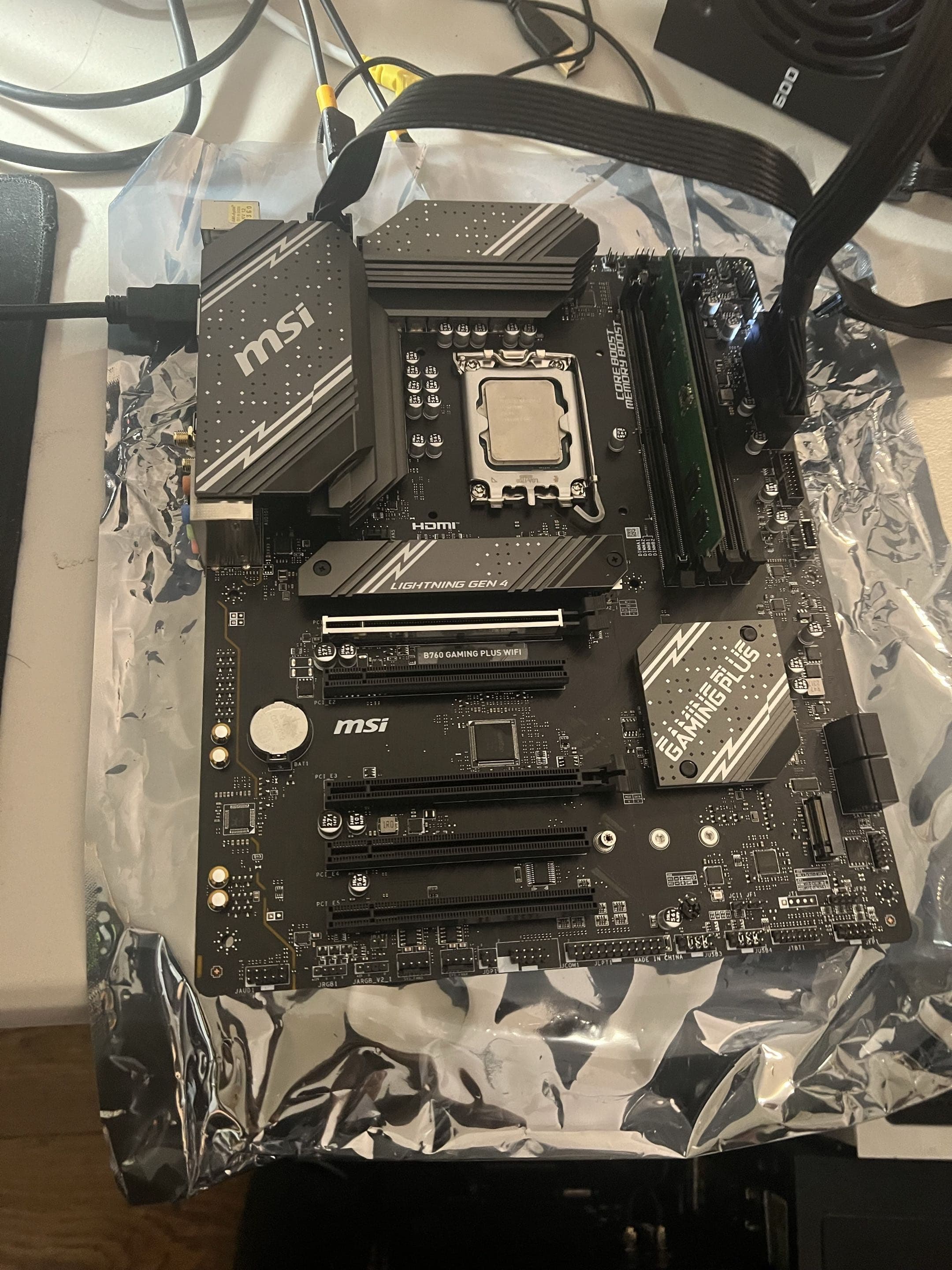
A client brought a desktop into my shop with a frustrating problem: it would crash at random every 5 to 30 minutes. There was no single trigger. It could happen while browsing the web, opening a program, sitting nearly idle, or doing ordinary work in Windows.
The final cause was faulty RAM. Reliability History gave me the first useful memory-related clue, Windows Memory Diagnostic detected hardware errors, and replacing the bad memory stopped the crashes.
The Symptoms Did Not Point to One Program
Intermittent crashes are difficult because they can make an unrelated program look guilty. If a computer crashes while a browser is open, it is easy to blame the browser. When the next crash happens in a different application or while the system is idle, that explanation starts to fall apart.
This PC showed exactly that pattern. It would run normally for a short time and then freeze, restart, or stop working without a dependable connection to one application. The short 5-to-30-minute interval made it possible to reproduce the problem, but the changing workload meant I needed to look at the history Windows had recorded.
I Checked Windows Reliability History
I opened View reliability history in Windows and worked through the red critical-event markers at the times the client reported crashes. Reliability History is easier to scan than a long Event Viewer log because it places application failures, Windows failures, updates, and hardware errors on a daily timeline.
Some entries only said that Windows was not properly shut down. That confirms a crash or forced restart happened, but it does not explain why. The more useful entry was a BlueScreen event whose technical details included bug-check code 1a, commonly shown as MEMORY_MANAGEMENT (0x0000001A). That put unstable memory high on my list of suspects.
A MEMORY_MANAGEMENT code is a clue, not automatic proof that a RAM stick is defective. Drivers and other hardware can also corrupt memory, so I used a dedicated memory test before replacing anything.
Why Bad RAM Can Look So Random
Windows constantly moves data through RAM. A failing memory cell may not be accessed at the same point every time the computer starts, so one crash can happen in a browser and the next can happen during a file transfer or while Windows is doing background work. That is why faulty RAM can produce different symptoms and different-looking crashes instead of failing in one predictable application.
The repeating memory-related crash record did not finish the diagnosis, but it gave me a specific component to test instead of guessing between Windows, the storage drive, graphics card, power supply, and every installed program.
Windows Memory Diagnostic Found Hardware Errors
I searched Windows for Windows Memory Diagnostic, selected Restart now and check for problems, and let the computer reboot into the test. After the diagnostic had been running for a while, it displayed the message that hardware problems were detected.
Windows Memory Diagnostic tests memory; it does not repair physical RAM. A detected error means the memory subsystem is unstable and needs further attention. The result matched the memory-related clue in Reliability History, making the installed RAM the leading suspect.
The Repair: Replacing the Faulty Memory
I replaced the faulty RAM with known-good compatible memory and ran the diagnostic again. This time the test completed without reporting hardware errors. I then used the computer normally and repeated the kinds of everyday tasks that had caused it to fail before.
The machine stayed stable beyond the previous 30-minute crash window and continued running without the random freezes and restarts. The clean memory test and the before-and-after stability result confirmed that the original RAM was at fault.
What to Do If Your PC Keeps Crashing Randomly
If your computer crashes during unrelated activities, do not immediately reinstall Windows or replace the most expensive component. Start by documenting when each crash happens and checking the evidence Windows already collected.
- Open View reliability history and match critical events to the crash times
- Open the technical details and record the problem-event name and bug-check code
- Run Windows Memory Diagnostic if the evidence points toward memory
- Back up important files because unstable memory can corrupt data
- Have the RAM modules, motherboard slots, and memory settings isolated if the test reports errors
- Retest after the repair and verify that the original crash pattern is gone
A positive memory test does not tell you which stick or slot is responsible, so proper isolation still matters. On this computer, replacement memory passed testing and eliminated the crashes, giving the client a stable PC again without an unnecessary Windows reinstall.
Random crashes are not truly random once you build a timeline and test the evidence. Reliability History helped narrow this repair to memory, but the failed diagnostic and successful replacement confirmed the fix.
If your computer keeps freezing or restarting without a clear cause, NorthCore offers local help with computer repair.