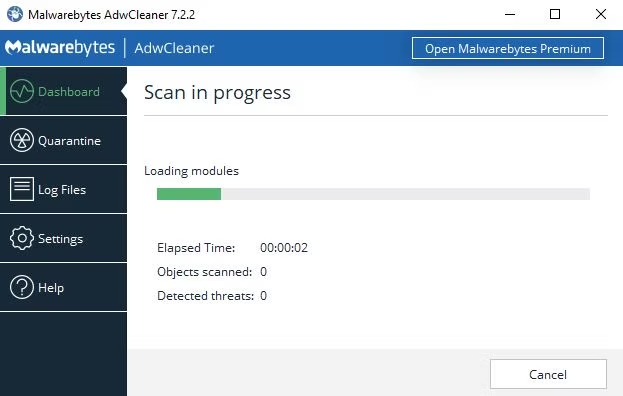
Malwarebytes AdwCleaner running a malware scan

Scan carefully. Remove thoroughly. Verify again.

Virus & Malware Removal
in Davis, CA

Malwarebytes-assisted scanning, threat removal, browser cleanup, personal-file safeguards, and post-cleanup verification.

Start with what you noticed

Suspicious Behavior Needs
a Structured First Check.

Describe the warning, redirect, download, or unusual behavior you saw. The first step is to understand the symptoms before deciding whether the system needs browser cleanup, malware removal, or a clean reinstall.

Pop-Ups and Browser Redirects

Unexpected tabs, changed search engines, notification spam, and unwanted extensions often point to adware or a browser hijacker.

  • Search results redirect elsewhere
  • Unknown extensions or toolbars
  • Fake security alerts
  • Notification spam and new tabs

The Computer Is Acting Suspiciously

Unknown programs, unusual startup activity, disabled security tools, or unexplained resource usage deserve a structured scan and manual review.

  • Unknown apps or processes
  • Security tools will not open
  • Unexpected startup behavior
  • Slow performance without a clear cause

A Security Warning Appeared

A detection, suspicious download, scam prompt, or possible account compromise should be checked before the computer returns to normal use.

  • Antivirus detection or quarantine alert
  • Suspicious download or attachment
  • Tech-support scam warning
  • Concern about exposed passwords
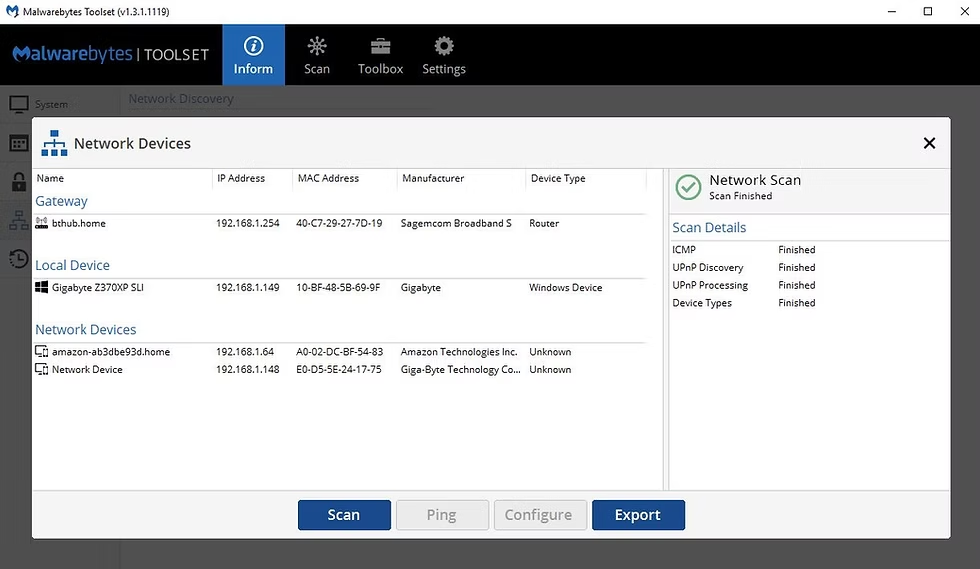
Malwarebytes Toolset showing a completed network device scan

Malwarebytes-assisted assessment

Scanning is followed by removal, system review, and verification

More Than a Single Scan

Remove the Finding.
Check How It Got Back In.

A trustworthy malware cleanup involves more than clicking Scan once. NorthCore uses Malwarebytes tools alongside browser, startup, installed-application, scheduled-task, and Windows Security checks. Important accessible personal files and backup options are discussed before disruptive work. Detected items are removed or quarantined, affected settings are repaired, and follow-up scans and symptom checks are completed before handoff.

Use Malwarebytes tools as part of the detection and cleanup workflow

Review browsers, startup items, scheduled tasks, and installed applications

Discuss backup options before any reset or reinstall that could affect personal files

Run follow-up scans and verify the reported symptoms no longer appear

A complete cleanup process

From the First Warning
to a Verified Handoff.

One clean scan is useful evidence, but verification also includes the original symptoms, common persistence points, and working Windows protections.

  1. Document the Symptoms

    We review what happened, when it began, any alerts you saw, and which personal files or accounts need special care.

  2. Protect Important Files

    Before disruptive work, accessible personal files and backup options are discussed so the cleanup plan accounts for your data.

  3. Scan, Remove, and Repair

    Malwarebytes and supporting system checks are used to quarantine findings, clean persistence points, and repair affected settings.

  4. Rescan and Verify

    We run follow-up checks, review the original symptoms, confirm security tools are working, and explain any remaining risks or next steps.

What to bring

The affected computer and power adapter, screenshots or the wording of any alerts, the approximate time the behavior started, and notes about suspicious downloads or links. Do not send passwords through the contact form.

Practical cleanup and verification

Malwarebytes Scanning,
Manual Checks, and File Care.

The exact workflow follows the symptoms and findings. Any reset, reinstall, or step affecting personal files is discussed before it begins.

Malwarebytes Scanning

Malwarebytes tools are used as part of the scan and cleanup workflow for malware, adware, potentially unwanted programs, and browser-related threats.

Browser Cleanup

Review and removal of unwanted extensions, notification permissions, redirects, modified search settings, and suspicious browser startup behavior.

Persistence Review

Inspection of startup items, scheduled tasks, installed applications, services, and other common places unwanted software can return from.

Personal File Protection

Important accessible files and backup needs are discussed before a reset, reinstall, or other step that could affect customer data.

Windows Security Review

Checks for working real-time protection, current security updates, firewall status, and obvious settings changed by unwanted software.

Post-Cleanup Verification

Follow-up scans and symptom checks help confirm detected items are removed or quarantined and the original behavior no longer appears.

A good local fit

Malware, adware, and browser cleanup

NorthCore handles suspicious Windows behavior, unwanted programs, browser hijackers, notification spam, common malware findings, and security-setting cleanup on accessible systems.

When cleanup is not enough

Ransomware or deep system damage

Encrypted files may not be decryptable, and a severely compromised installation may require a clean Windows reinstall, backup restoration, password changes, or a specialist referral.

Verified at handoff

Clean scans and working protections

We verify the agreed cleanup with follow-up scans, a review of the original symptoms, and checks that Windows security features are functioning before handoff.

Start with the warning or symptom

Tell Us What Changed
Before the Problem Started.

Share the alert, redirect, suspicious download, or unusual behavior. We will explain whether a malware assessment, browser cleanup, or more extensive system work is appropriate.

Request a Malware Assessment

FAQ & Guides

Virus & Malware Removal Questions & Resources

Open a question for a clear answer, or explore the practical guides alongside it.