Quick Answer
Why is my laptop plugged in but not charging?
The fault may be the wall connection, charger or cable, incorrect wattage, battery, charging port, firmware setting, or motherboard charging circuit. Check for damage or battery swelling, use the correct port and manufacturer-rated charger, and note any charging light or Windows message. A known-good compatible charger, battery report, visual port inspection, and electrical testing can separate the likely causes.
Request laptop charging diagnosis in DavisA laptop can say it is plugged in and still lose charge. It can also run normally from its charger while the battery percentage never increases, work only when the cable is held at an angle, or appear completely dead. Those symptoms belong to the same power path, but they do not automatically identify the same failed part.
NorthCore tests the adapter, battery, charging port, and the laptop's response before recommending a replacement. That matters because buying a battery will not repair a damaged DC jack, and replacing a charger will not correct a failed motherboard charging circuit.
What the Charging Symptom Can Suggest
| Symptom | Possible causes | Useful next evidence |
|---|---|---|
| No lights and no power | Outlet, charger, port, battery, internal connection, or motherboard | Adapter indicator, voltage test, known-good charger, and model-specific diagnostics |
| Runs plugged in but battery stays at the same percentage | Battery wear, charge limit, incorrect charger wattage, firmware, or charging circuit | Battery report, firmware battery status, charger recognition, and charge-limit settings |
| Charges only when the cable is moved | Damaged cable, loose DC jack, worn USB-C port, or internal connection | Visual inspection and controlled movement without forcing the connector |
| Charges slowly or loses power while plugged in | Underpowered or incompatible charger, USB-C cable limit, high workload, or battery fault | Required wattage, charger recognition, cable rating, and workload comparison |
| Battery percentage drops suddenly | Battery wear, calibration error, or cell failure | Battery report, firmware diagnostics, and behavior during a controlled discharge |
| Case or trackpad is lifting | Possible swollen battery | Stop using the laptop and arrange safe inspection promptly |
Safe Checks Before Opening the Laptop
- Try a known working wall outlet and connect the charger's removable AC cord firmly at both ends.
- Inspect the charger, cable, plug, and laptop port for bent metal, exposed wire, heat damage, debris, or a burning smell.
- Confirm that the adapter is intended for the exact laptop and provides the required voltage, wattage, and supported USB-C charging standard.
- Use the designated charging port; not every USB-C connector on every laptop accepts power input.
- Record whether the adapter or laptop charging indicator is solid, off, flickering, or changing color.
- Read the full Windows battery message, including warnings that charging is slow or the connected adapter is not recognized.
- Shut the laptop down if the battery is swollen, the case is separating, the connector sparks, or anything becomes unusually hot.
Do not insert metal tools into a powered charging port or continue bending a loose connector until the laptop responds. That can damage the port, plug, or motherboard and can turn an intermittent fault into a larger repair.
How the Charger Is Tested
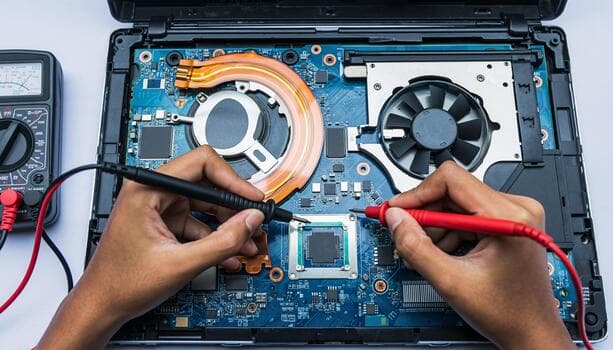
The first step is confirming that the laptop receives the type of power it expects. NorthCore reviews built-in charger recognition and port indicators when the model provides them, inspects the cable and connector, and can use a multimeter where an electrical measurement is appropriate. A compatible known-good charger may also be substituted when one is available in the shop.
A glowing adapter LED is evidence, not a complete diagnosis. Some adapters can illuminate but fail under load, and some laptops reject an adapter they cannot identify even though voltage is present. Manufacturer firmware may report the adapter as unknown, underpowered, or connected at the wrong wattage.
Why USB-C Charging Can Be Easier but Still Misleading
USB-C makes it easier to compare a laptop with a compatible known-good charger, but the connector shape alone does not guarantee compatibility. The charger, cable, port, and laptop must negotiate a supported power level. A phone charger may fit and still be unable to power the laptop, while a cable intended mainly for data may limit charging.
Windows may report that a PC is charging slowly or discharging while plugged in when the charger or cable cannot meet the computer's power requirements. The correct test uses a charger and cable rated for the laptop, not merely another USB-C plug.
How Battery Condition Is Checked
When Windows is accessible, a battery report can show the battery's design capacity, recent full-charge capacity, usage history, and estimates. NorthCore combines that information with charge behavior, model diagnostics, physical condition, and the result of charger testing. A report is helpful, but it cannot make a damaged or swollen battery safe.
Batteries are consumable parts. A laptop may still work well from AC power after the battery becomes weak, while a failed battery may prevent portable use or cause sudden shutdowns. NorthCore replaces compatible laptop batteries after confirming the part and obtaining customer approval.
A Swollen Battery Needs Immediate Attention
Swelling indicates battery damage and can push against the trackpad, keyboard, palm rest, display, or bottom cover. Stop using and charging the laptop, avoid pressing the case back together, and keep it away from heat and flammable materials while arranging service. If there is smoke, rapid heating, hissing, or an immediate fire risk, move away and contact emergency services.
NorthCore replaces compatible swollen batteries and sends removed batteries through an appropriate electronics or battery e-waste stream. Lithium-ion batteries do not belong in household trash or ordinary curbside recycling.
When the Charging Port or DC Jack Is the Problem
A barrel-style DC jack may be loose, cracked, obstructed, or disconnected from its internal cable. Some laptop models use a modular jack that can be replaced without soldering. NorthCore can diagnose and replace compatible modular DC charging jacks, subject to part availability and the condition of the surrounding chassis.
Other ports are soldered directly to the motherboard, and USB-C power faults can involve the port, controller, board traces, or charging circuit. NorthCore does not perform motherboard-level microsoldering. When diagnosis points to a board-level fault, NorthCore can explain the finding, help evaluate a manufacturer RMA, or discuss replacement options rather than claiming a connector-only repair.
NorthCore's Laptop Charging Diagnostic Process
- Document the exact symptom, recent damage, liquid exposure, and whether the laptop runs from battery or AC power.
- Inspect the charger, cable, port, chassis, and battery area for visible damage or swelling.
- Review charger and battery indicators provided by the laptop or firmware.
- Generate a Windows battery report when the operating system is accessible.
- Use a multimeter or compatible known-good charger when appropriate and available.
- Determine whether the replaceable fault is the charger, battery, cable-type DC jack, or another serviceable part.
- Identify motherboard-level faults that require RMA guidance or a different repair provider.
- Provide a quote and receive approval before ordering parts or beginning the repair.
How Long Does Laptop Charging Repair Take?
If the laptop needs diagnosis only and the required test equipment or compatible charger is available, the initial finding may be possible the same day. A battery or modular DC-jack replacement depends on identifying and receiving the exact part. Turnaround is therefore often determined by supplier availability and shipping rather than the installation alone.
NorthCore diagnostics start at $40, and the full diagnostic fee is credited toward an approved repair. The final quote depends on the test scope, replacement part, disassembly, and any chassis damage around the charging port. Contact NorthCore with the complete laptop model and charger information for the most useful starting estimate.
For charger, battery, USB-C, and replaceable DC-jack diagnosis in Davis, NorthCore offers laptop repair.