Quick Answer
Will replacing a hard drive with an SSD make a slow laptop or desktop faster?
It can make a dramatic difference when a mechanical hard drive is the bottleneck. In two NorthCore upgrades, Windows startup and ordinary loading that took minutes fell to seconds after the SSD became the boot drive. An SSD will not fix insufficient memory, overheating, malware, or another failing component, so the existing drive and the rest of the computer should be assessed before migration.
Ask about an SSD upgrade in DavisA slow computer does not automatically need an SSD. Startup programs, low memory, heat, malware, Windows problems, and other hardware faults can create similar symptoms. But when Windows still boots from a mechanical hard drive and storage activity is the bottleneck, moving the operating system to an SSD can change how the entire machine feels.
Laptop Example: A Humming Hard Drive and Minutes-Long Startup
A customer brought NorthCore a laptop that was a few years old. Its mechanical hard drive produced a noticeable hum, Windows took several minutes to start, and ordinary applications and files loaded slowly. The laptop was still useful, but waiting on the boot drive made everyday work frustrating.
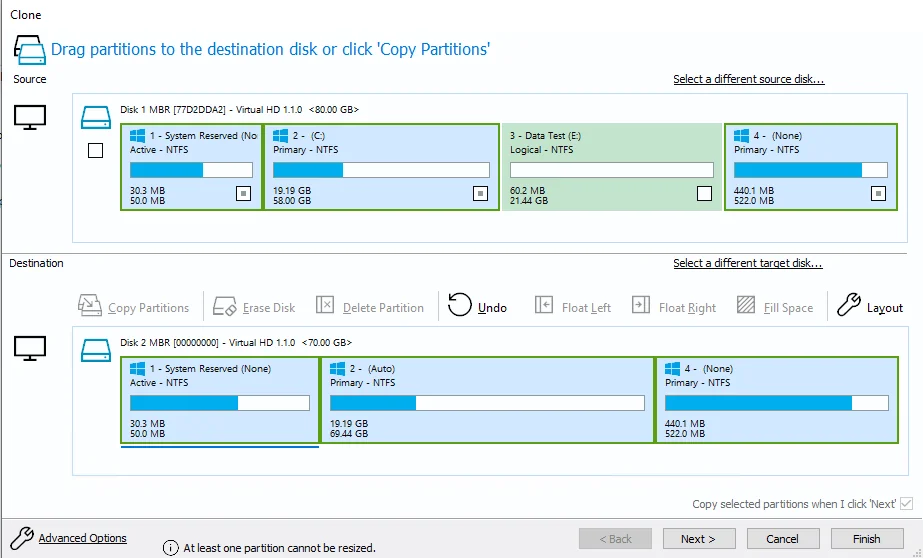
After the source drive was assessed, the customer's Windows environment and files were migrated to a replacement SSD and the SSD became the new boot drive. Startup and ordinary loading changed from taking minutes to taking seconds. The customer kept the familiar Windows setup and left happy with a laptop that felt responsive again.
A steady hum can be normal for a spinning hard drive and does not prove failure by itself. New clicking, grinding, repeated spin-up sounds, read errors, disconnections, or a drive that disappears are more urgent warning signs. Protect important files before repeatedly testing a questionable drive.
Desktop Example: The Same Bottleneck in a Different Hard Drive
NorthCore has seen the same pattern in a desktop using a different mechanical hard drive: slow Windows startup, delayed application launches, and long waits for ordinary tasks. Moving the boot workload to an SSD removed the mechanical drive from the critical path. Startup and loading were then measured in seconds rather than minutes.
The form factor changes the installation, not the underlying decision. A laptop may need a 2.5-inch SATA or M.2 drive that fits its design, while a desktop may offer more drive and cable options. Compatibility, capacity, Windows activation, encryption, and the condition of the source drive still need to be checked in either system.
Clone, Migrate Files, or Install Windows Cleanly?
A readable, stable hard drive may be suitable for a planned clone so the customer can keep the existing Windows environment, applications, and files. A damaged or unstable source may need a more cautious file-first approach. A clean Windows installation can make more sense when the existing installation is corrupted, unwanted software is extensive, or the customer wants a fresh setup.
The safest choice depends on what the old drive can still read and what must be preserved. NorthCore confirms the migration scope before work begins rather than promising that every failing drive can be cloned.
When an SSD Is Not the Complete Fix
- High memory usage during the customer's normal workload may call for a RAM assessment instead of, or in addition to, storage work.
- Heat-related slowdowns require temperature, fan, airflow, and workload checks; a faster drive does not correct thermal throttling.
- Malware, unwanted startup software, damaged Windows files, and pending updates can keep a computer slow after a storage upgrade.
- A weak processor or unsupported operating system may limit whether further investment makes sense.
- Clicking, grinding, disconnections, or serious read errors can turn an ordinary upgrade into a data-preservation decision.
What Helps NorthCore Plan the Upgrade
Provide the laptop or desktop model, current storage capacity, the files and applications that must remain, and a description of when the slowdown is most obvious. Mention unusual drive sounds, errors, freezes, or previous backup attempts. That information helps separate a routine SSD upgrade from a drive that should be handled cautiously.
The laptop and desktop examples describe observed NorthCore outcomes, not a universal boot-time promise. Results depend on the computer, SSD interface, Windows condition, startup software, and the health of the source drive.
For a slow PC, unstable drive, or planned file transfer in Davis, CA, ask NorthCore about computer repair and drive cloning & file transfers.