Quick Answer
Why does my PC keep blue screening?
A PC that keeps blue screening may have unstable RAM, a bad driver, storage corruption, firmware trouble, overheating, or another hardware fault. At NorthCore, we start with the stop code, Reliability Monitor, crash dumps, and repeatable tests, then isolate one variable at a time. That helps avoid unnecessary Windows reinstalls and replacement parts.
See NorthCore's computer repair service in DavisWhat a Blue Screen Actually Means
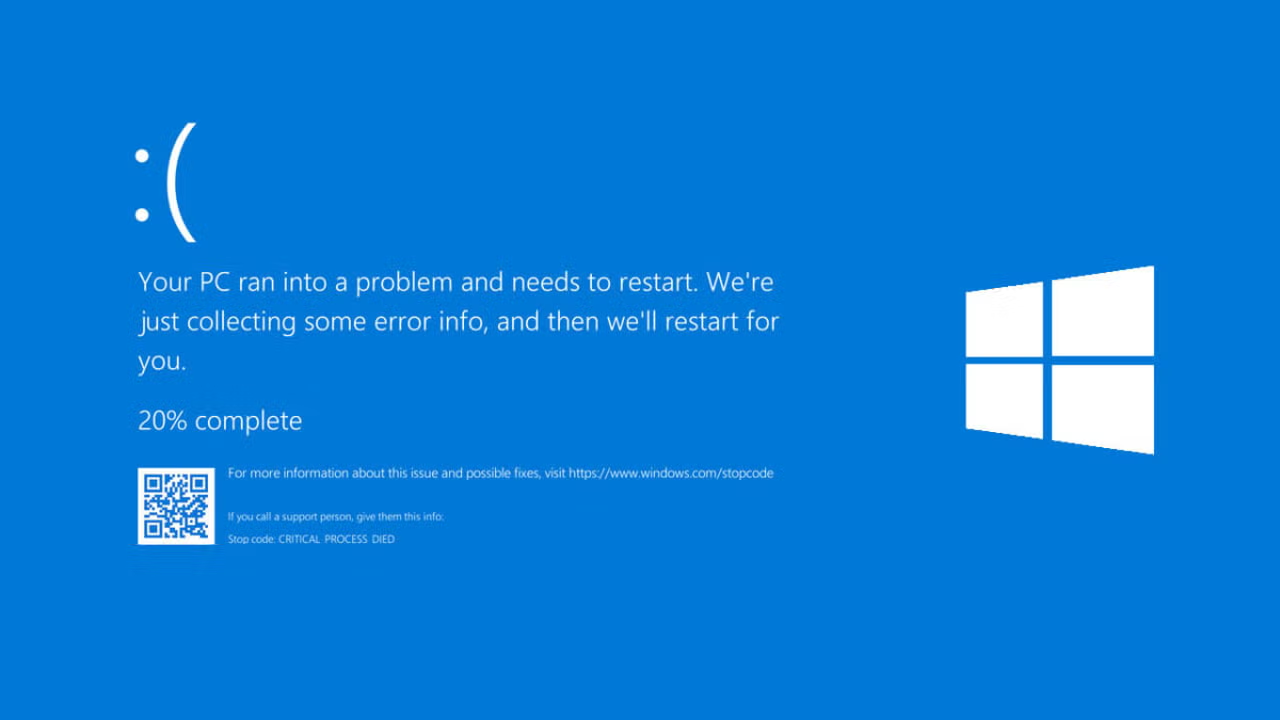
A blue screen of death, also called a stop-code error, bug check, or BSOD, appears when Windows encounters a serious problem and cannot continue safely. Depending on the Windows version, the stop screen may appear blue or black. The color is less useful than the stop code, any listed module under “What failed,” and what the computer was doing immediately before the crash.
One isolated crash after an update may never return. Repeated blue screens, several different stop codes, crashes during startup, or failures that appear under the same workload deserve a structured diagnosis. Frequent forced restarts can also interrupt writes to the drive, so protect important files before treating the computer like a test bench.
Capture These Clues Before Trying Fixes
The best first step is collecting evidence. A photo and an exact time are often more useful than a general description that the computer crashed.
- Photograph the complete stop screen, including the stop code and any “What failed” filename.
- Write down the time and whether the crash happened during startup, gaming, sleep, an update, or ordinary desktop use.
- Record recent changes such as new RAM, a graphics driver, a BIOS update, an overclock, or a newly connected device.
- Open Reliability Monitor by searching for it in Start or running perfmon /rel, then match the failure to the time of the crash.
- Check whether C:\Windows\Minidump contains crash dumps. Multiple dumps are more useful than drawing a conclusion from one event.
Kernel-Power Event 41 means Windows detected an improper shutdown. It confirms that the computer restarted unexpectedly, but it does not identify the failed part or prove the power supply caused the crash.
What Common Stop Codes Can Tell You
A stop code identifies the kind of failure Windows detected. It is a starting point, not a parts-replacement instruction. The same code can have several causes, and corrupted memory can make an innocent driver appear in a dump.
| Stop code | What Windows detected | Possible areas to investigate |
|---|---|---|
| MEMORY_MANAGEMENT | A severe memory-management error | RAM, unstable memory settings, drivers, storage, or damaged memory structures |
| PAGE_FAULT_IN_NONPAGED_AREA | Windows referenced memory that should have been available | RAM, a driver, the page file, storage, or low-level security software |
| KMODE_EXCEPTION_NOT_HANDLED | A kernel-mode component raised an exception that was not handled | A driver, firmware, incompatible software, or memory corruption |
| CRITICAL_PROCESS_DIED | A process required by Windows terminated | System-file corruption, storage problems, drivers, or unstable hardware |
| WHEA_UNCORRECTABLE_ERROR | Windows received an uncorrectable hardware error report | CPU, RAM, motherboard, firmware, temperatures, power, or unstable tuning |
For example, MEMORY_MANAGEMENT often makes people order RAM immediately. Faulty RAM is a real possibility, but Microsoft documents several variants of that bug check involving drivers, paging operations, and different kinds of memory corruption. The parameters in the dump and the results of controlled tests matter more than the name alone.
A NorthCore Case: MEMORY_MANAGEMENT, Freezes, and Failing RAM
One NorthCore client had a PC that could work normally for a few minutes and then show a MEMORY_MANAGEMENT blue screen, freeze, or restart. The failure did not stay tied to one application, and the interval varied enough that a quick startup test could make the machine appear healthy.
Windows Memory Diagnostic reported hardware problems with the original memory installed. NorthCore replaced it with compatible known-good RAM and repeated the memory test. The replacement passed, and the PC then remained stable beyond the previous crash window during ordinary use.
The useful evidence was the combination of the repeating symptom, the memory-related stop code, a failed test with the original RAM, a passed test with the replacement, and the disappearance of the original crashes. The stop code alone would not have been enough to justify buying memory.
A memory test that reports errors confirms instability in the memory subsystem, but further isolation may still be needed to distinguish a RAM module, motherboard slot, memory settings, or another platform problem. Change one variable and retest before declaring the repair complete.
A Diagnostic Order That Avoids Guessing
Start with reversible checks and evidence, then move toward hardware isolation. Changing several things at once may temporarily hide the problem without telling you what fixed it.
- Back up important files while the system is stable enough to do so. If the drive clicks, disappears, or reports serious health warnings, stop stressing it and address the data first.
- Undo the most recent change. Remove newly added hardware when practical, roll back a driver that immediately preceded the crashes, and disconnect unnecessary peripherals.
- Return the system to stock settings for testing. Temporarily disable CPU or GPU overclocks and XMP or EXPO memory profiles if you know how to restore those settings later.
- Try Safe Mode when normal Windows will not remain stable. If the crashes stop there, that strengthens the case for a driver, service, or startup-software conflict, although it does not prove one.
- Run Windows Memory Diagnostic as an initial RAM check. A reported hardware error matters; a clean result does not rule out every intermittent memory problem.
- Review drive health and run sfc /scannow when system-file corruption is suspected. System File Checker repairs protected Windows files; it does not test the RAM, diagnose the power supply, or remove every type of malware.
- Check temperatures and whether the crash follows a repeatable workload. A failure only under gaming load creates a different test plan than a crash that occurs while the computer sits idle.
- Analyze several minidumps when the basic checks do not isolate the cause. Repeated references to the same third-party module are more useful than a single filename from one crash.
- Swap or isolate one component at a time using known-good parts when hardware remains likely. Retest the same workload after every change.
Why “I Updated the Drivers” Is Not the End of the Diagnosis
A Reddit user described a computer that blue-screened during certain games with KMODE_EXCEPTION_NOT_HANDLED and PAGE_FAULT_IN_NONPAGED_AREA. They had already updated and reinstalled drivers, but the crashes continued. A reply listed RAM, storage, motherboard, CPU, power supply, and overheating as possibilities. The user's next question was the important one: how do you determine which part is actually faulty?
That question exposes the weakness in most generic BSOD advice. A long list of possible parts is not a diagnosis. Reinstalling a driver also does not prove the driver or device is innocent. The useful next step is to compare multiple dumps, reproduce the same failure, test memory at stock settings, and isolate one variable at a time. The original discussion is linked in the sources below.
Avoid These Common Blue-Screen Mistakes
- Do not treat one stop-code name as proof that a specific component failed.
- Do not reinstall Windows before checking whether the crashes also point to unstable or failing hardware.
- Do not download random driver-updater or registry-cleaner utilities. Use Windows Update and the computer or component manufacturer's support pages.
- Do not replace the RAM, power supply, graphics card, and motherboard together. You may spend heavily and still lose the evidence needed to identify the cause.
- Do not keep forcing repeated crashes when important files have not been backed up.
When to Stop Troubleshooting at Home
Pause do-it-yourself testing when Windows cannot stay running long enough to protect your files, the drive makes unusual mechanical sounds, a memory test reports hardware errors, the computer recently suffered a spill or electrical event, or you are not comfortable changing firmware and hardware settings. A machine that blue-screens during startup may also require offline tools or known-good components that are easier to use on a repair bench.
How NorthCore Diagnoses Repeated Blue Screens
At NorthCore, the goal is to reproduce the reported failure and narrow it with evidence before recommending parts. Depending on the symptoms, that can include reviewing Reliability Monitor and dump files, returning unstable settings to stock, testing memory and storage, monitoring temperatures, checking firmware, and repeating the same workload with one variable changed.
Diagnostics start at $40. We confirm the diagnostic scope before proceeding, explain what the testing shows, and credit the full diagnostic fee toward an approved repair. A blue screen does not automatically mean the computer is dead or that Windows needs to be erased.
When you contact NorthCore, include a photo of the stop code, what you were doing when it crashed, how often it happens, and any recent hardware or software changes. Those details can shorten the path from symptom to a useful test.
If your PC keeps blue screening, NorthCore offers structured diagnosis in Davis, CA through computer repair.